It's not a bookmark.
It's the free PickleJar app.
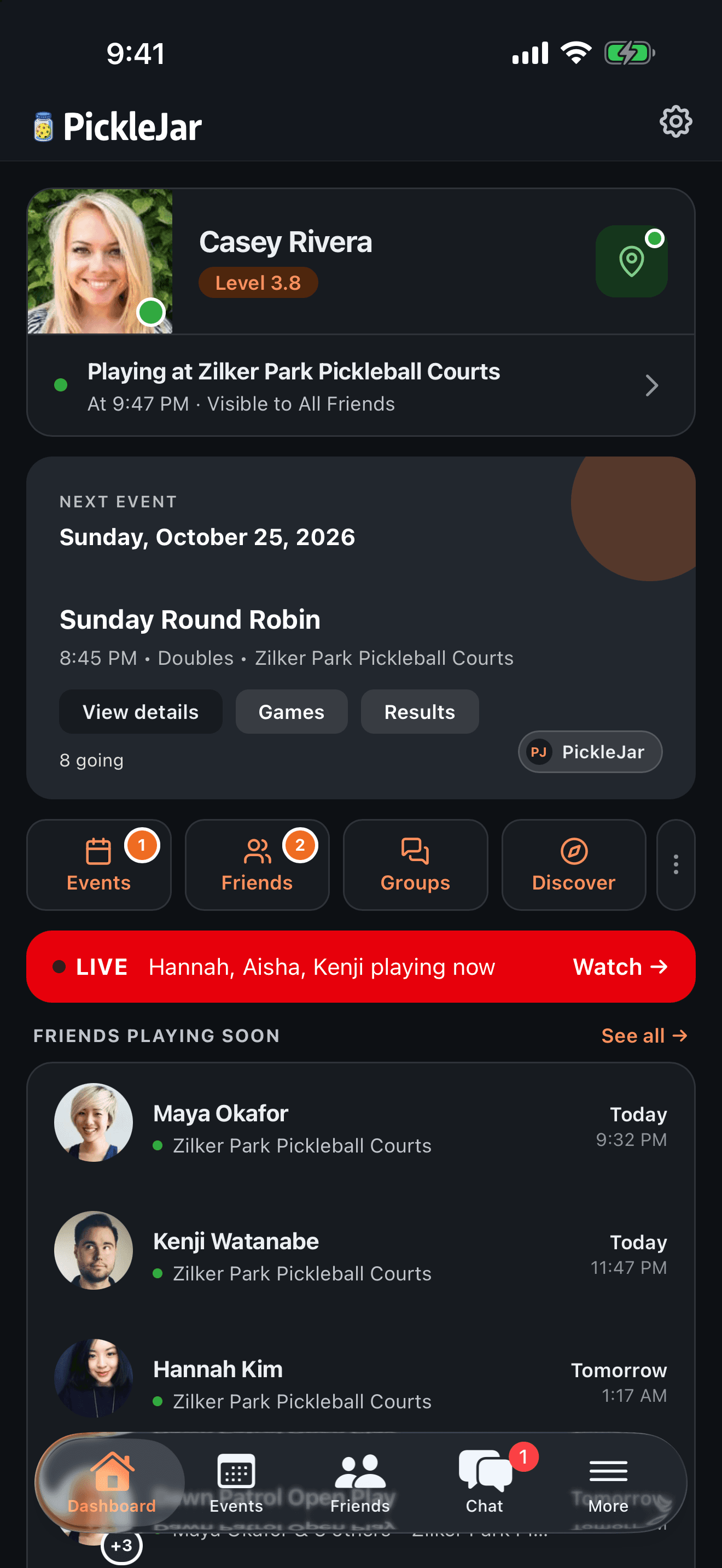
Add PickleJar to your Home Screen and it opens full screen, with its own icon, and sends notifications. On iPhone it's the only way to get them from the web. Never miss “we need a fourth.”
On iPhone, in Safari.
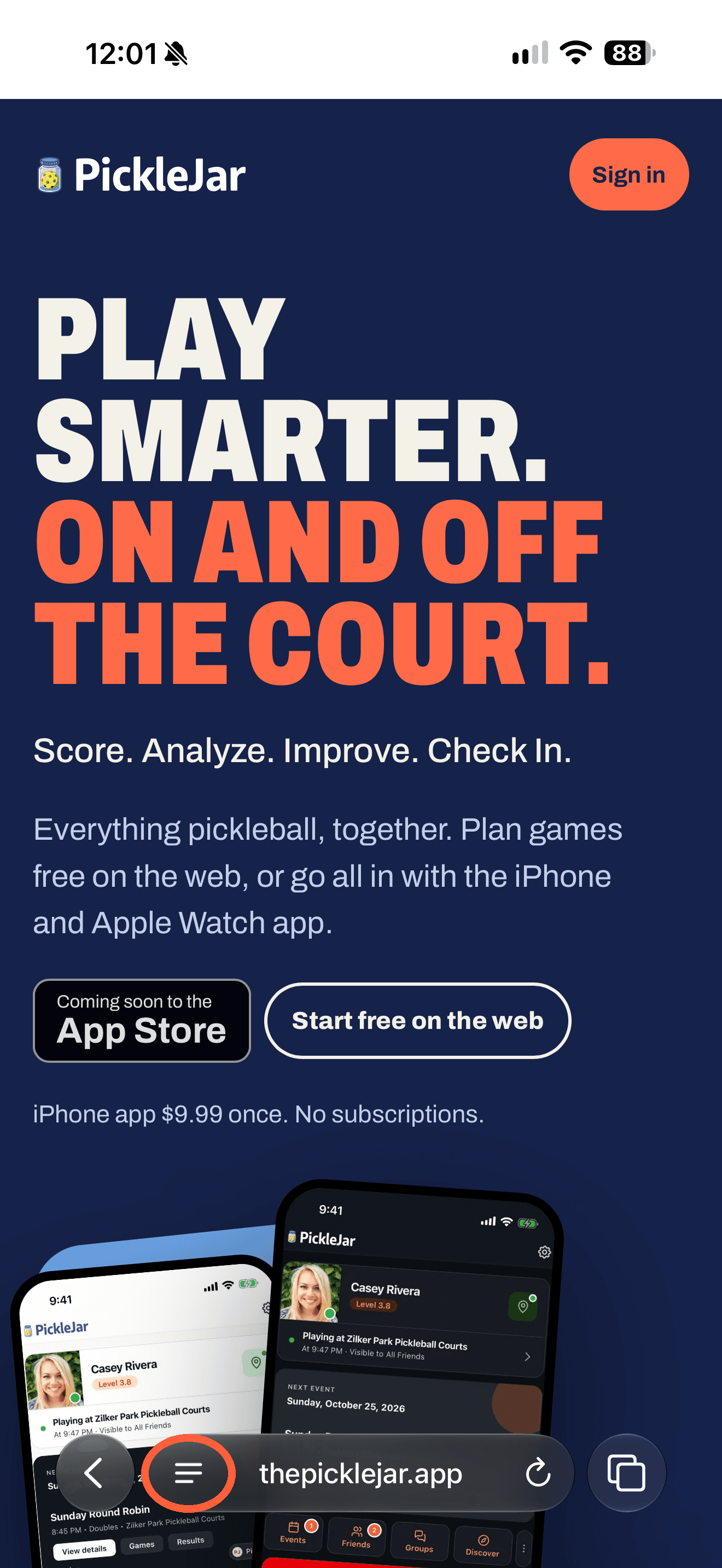
- 1Open the menuIn Safari on thepicklejar.app, tap the menu button (three lines) next to the address bar.
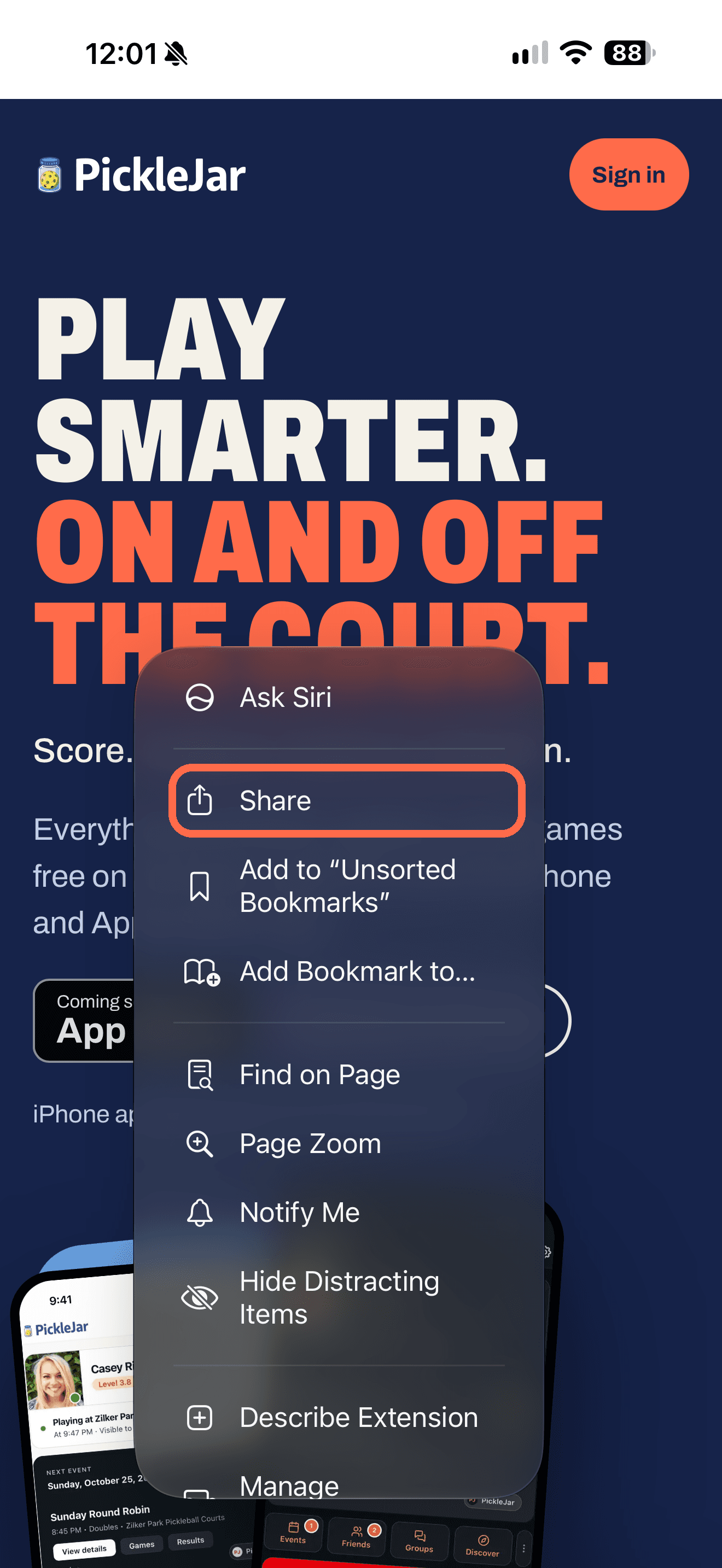
- 2Tap ShareShare is in the menu that opens.
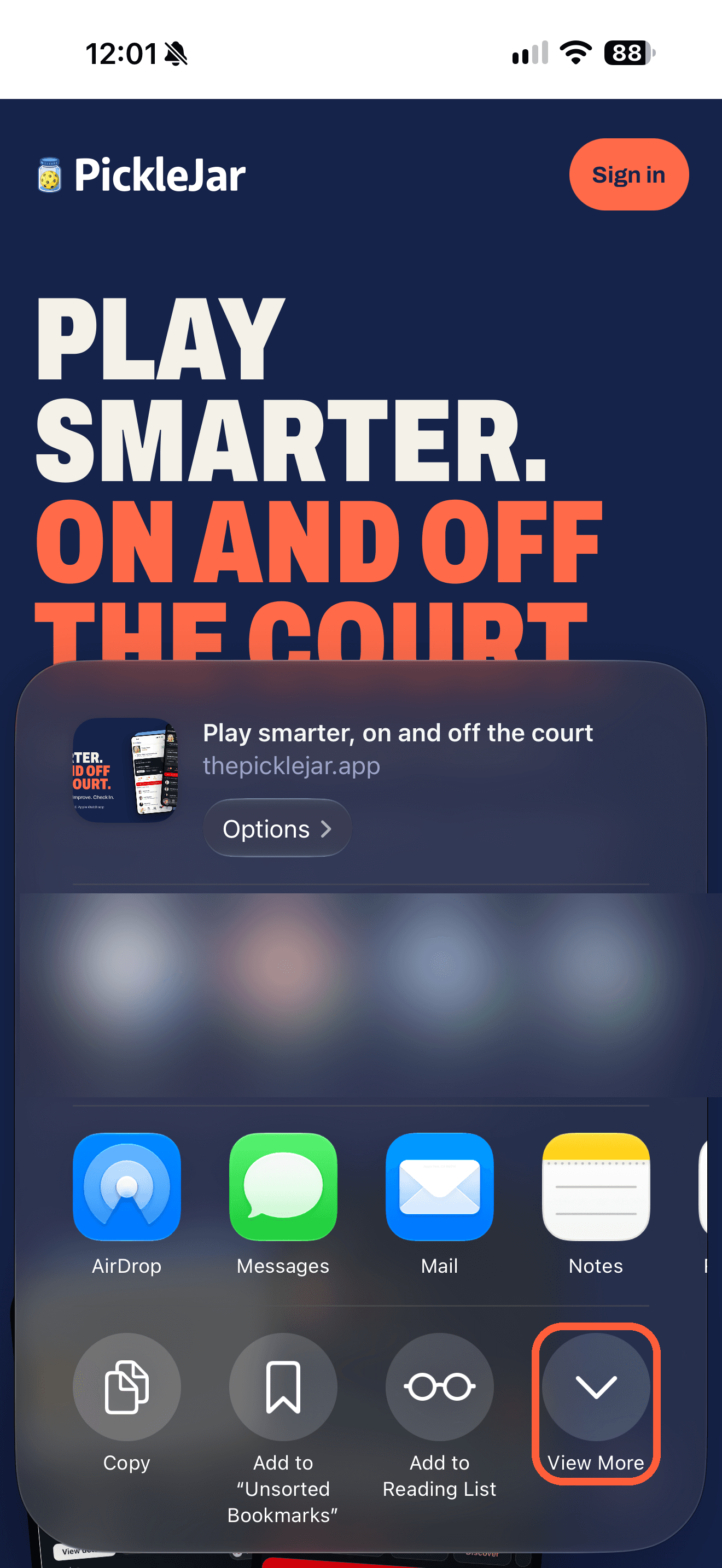
- 3Tap View MoreAdd to Home Screen is in the longer list.
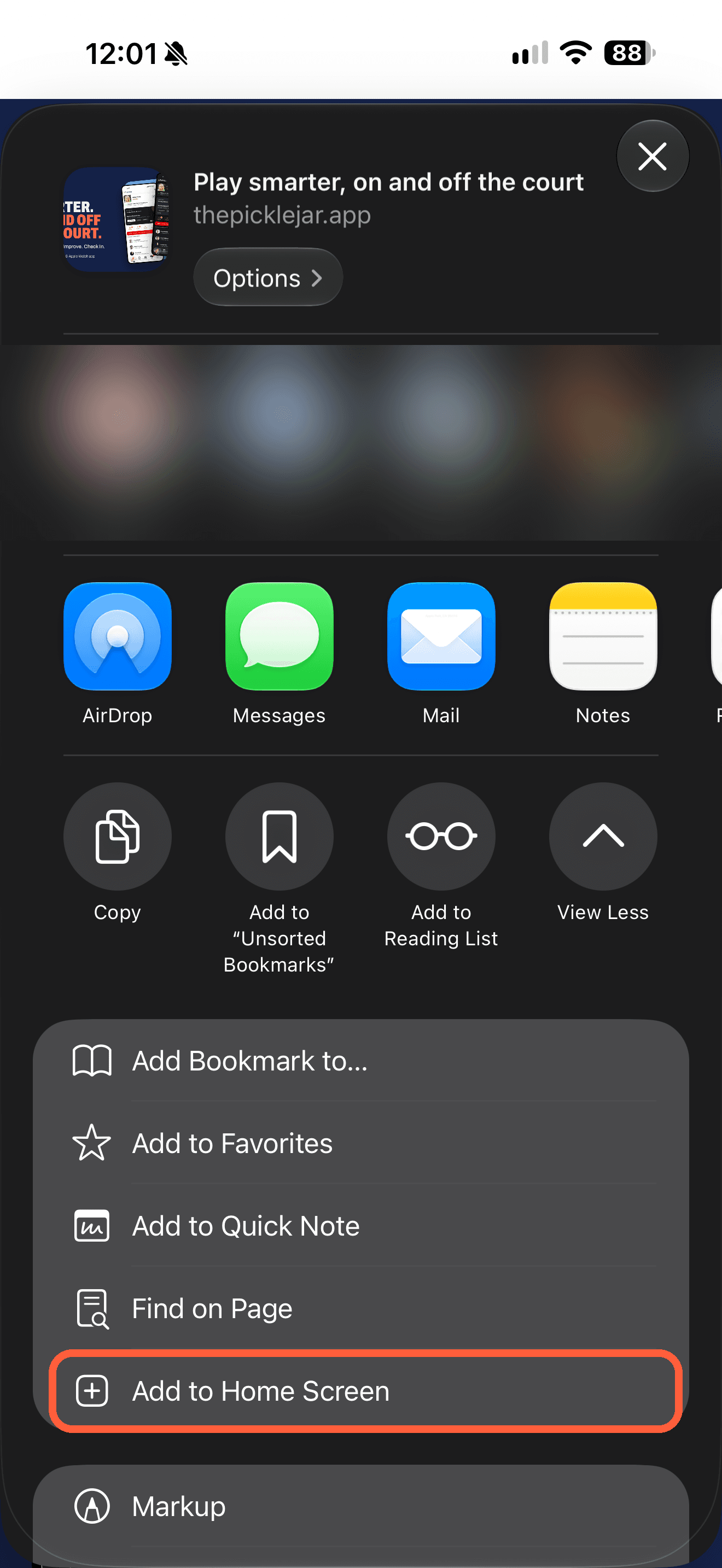
- 4Add to Home ScreenScroll if you need to, and tap Add to Home Screen.
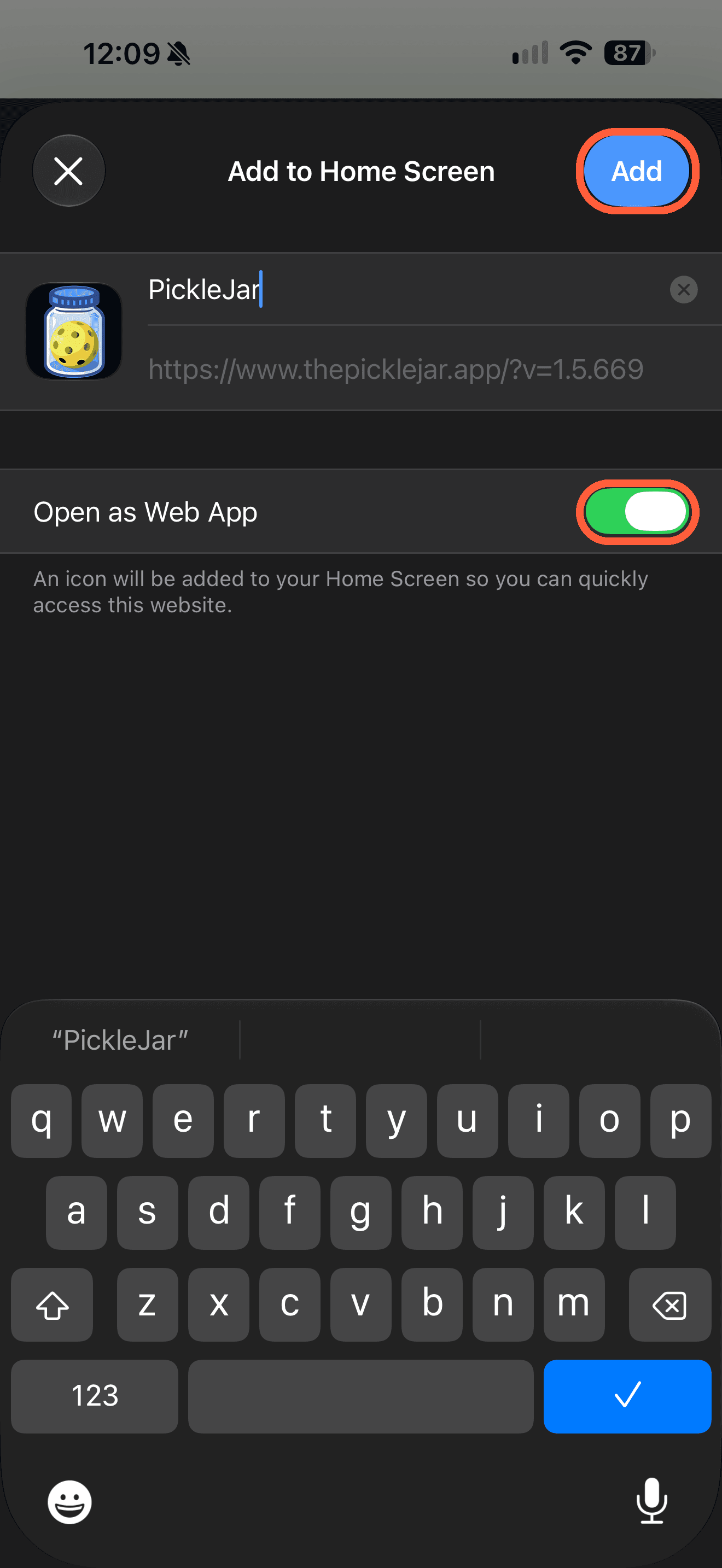
- 5Leave Open as Web App onThat's what makes it an app and not a bookmark. Tap Add.
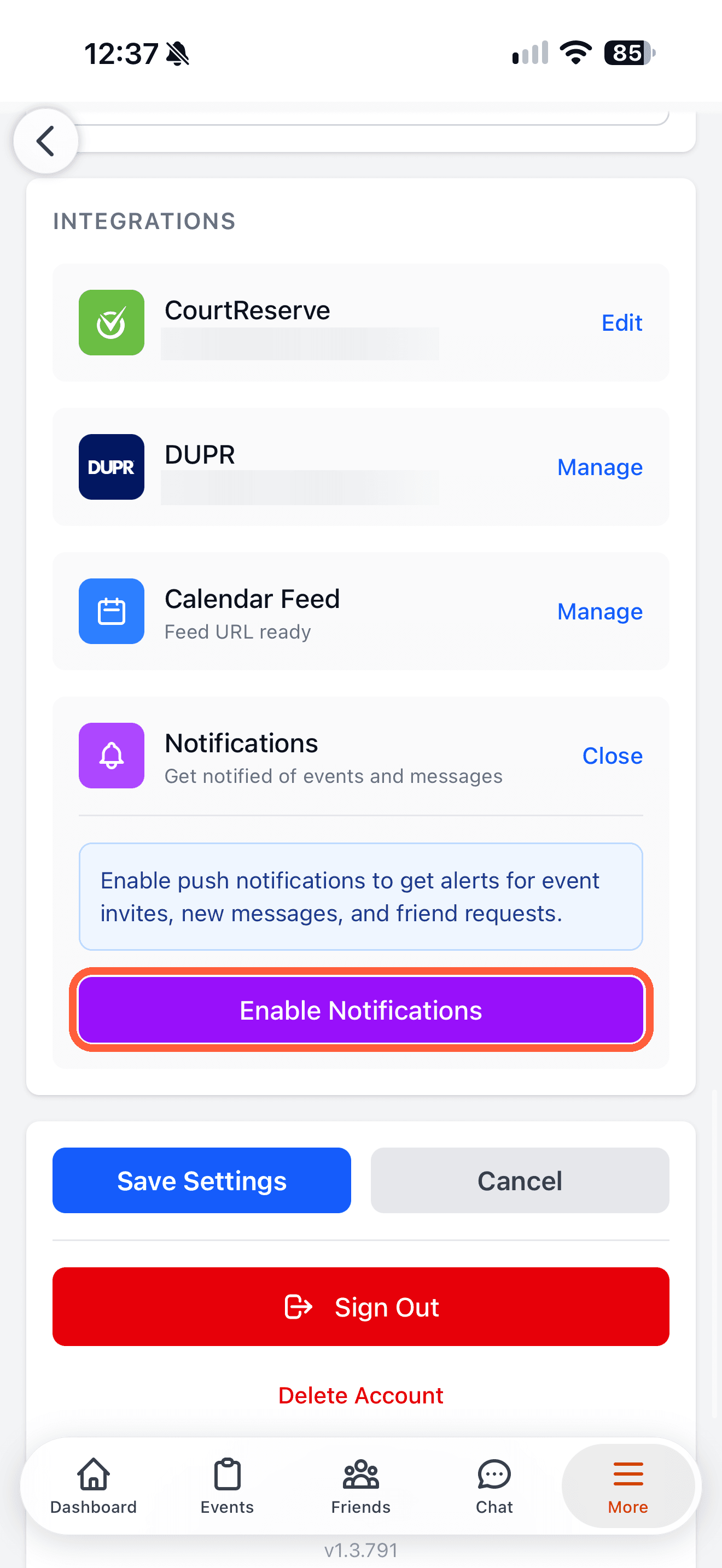
- 6Turn on notificationsOpen PickleJar from the new icon and sign in. Go to More → Settings → Notifications and tap Enable Notifications.
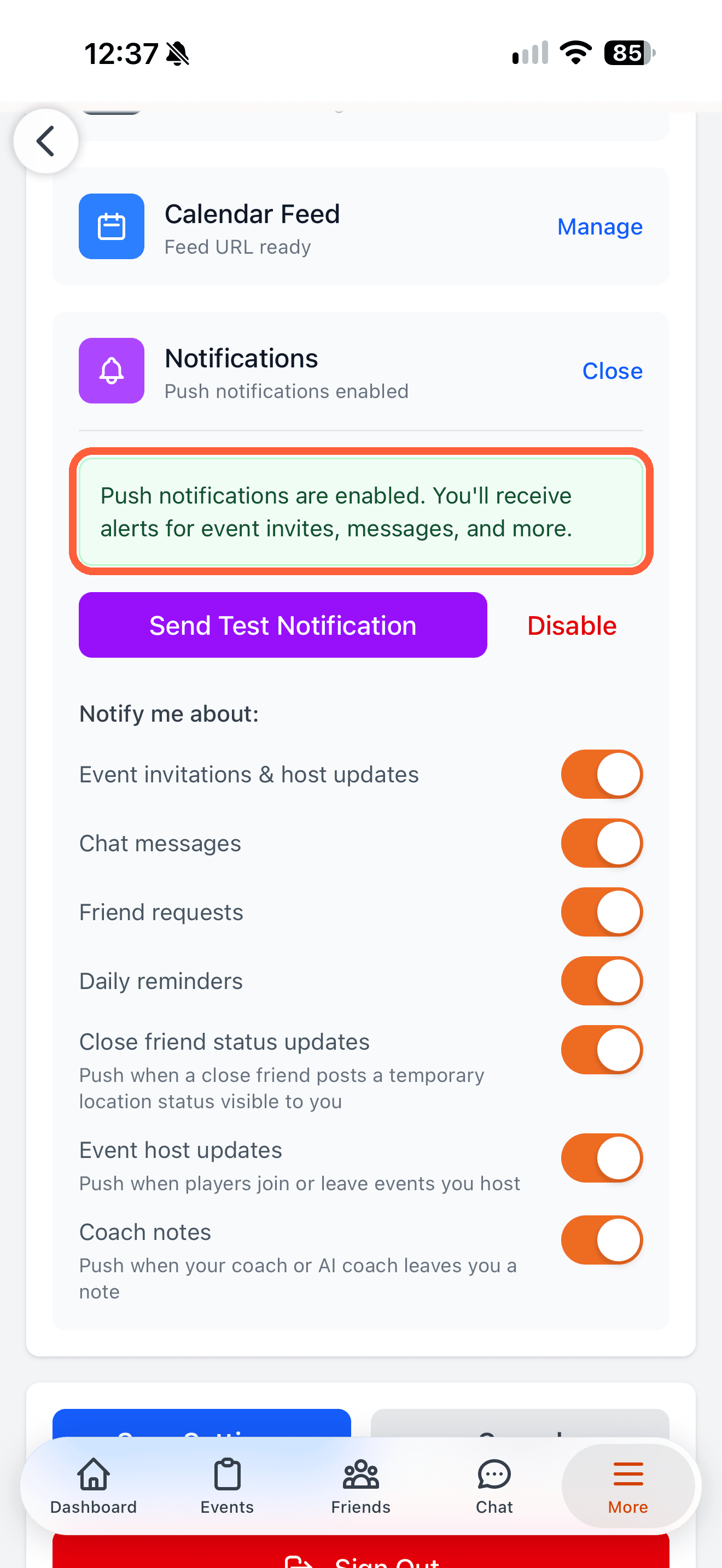
- 7You're setAllow notifications when iPhone asks. Pick what you want to hear about, or send yourself a test.
What you get.
WebFree
In any browser, nothing to install.
- ✓Events & RSVP
- ✓Friends
- ✓Scores
- ✓Chat
- ✓Courts
- ✓Full DUPR® integration
- ✓CourtReserveTM check-in
- —Home screen icon & full screen
- —Push notifications on iPhone
- —iPhone app + dark mode
- —Apple Watch scoring
- —Live scoring
- —AI video highlights
- —Check-in widget & Apple Watch check-in
- —Lock Screen & widgets
This one's free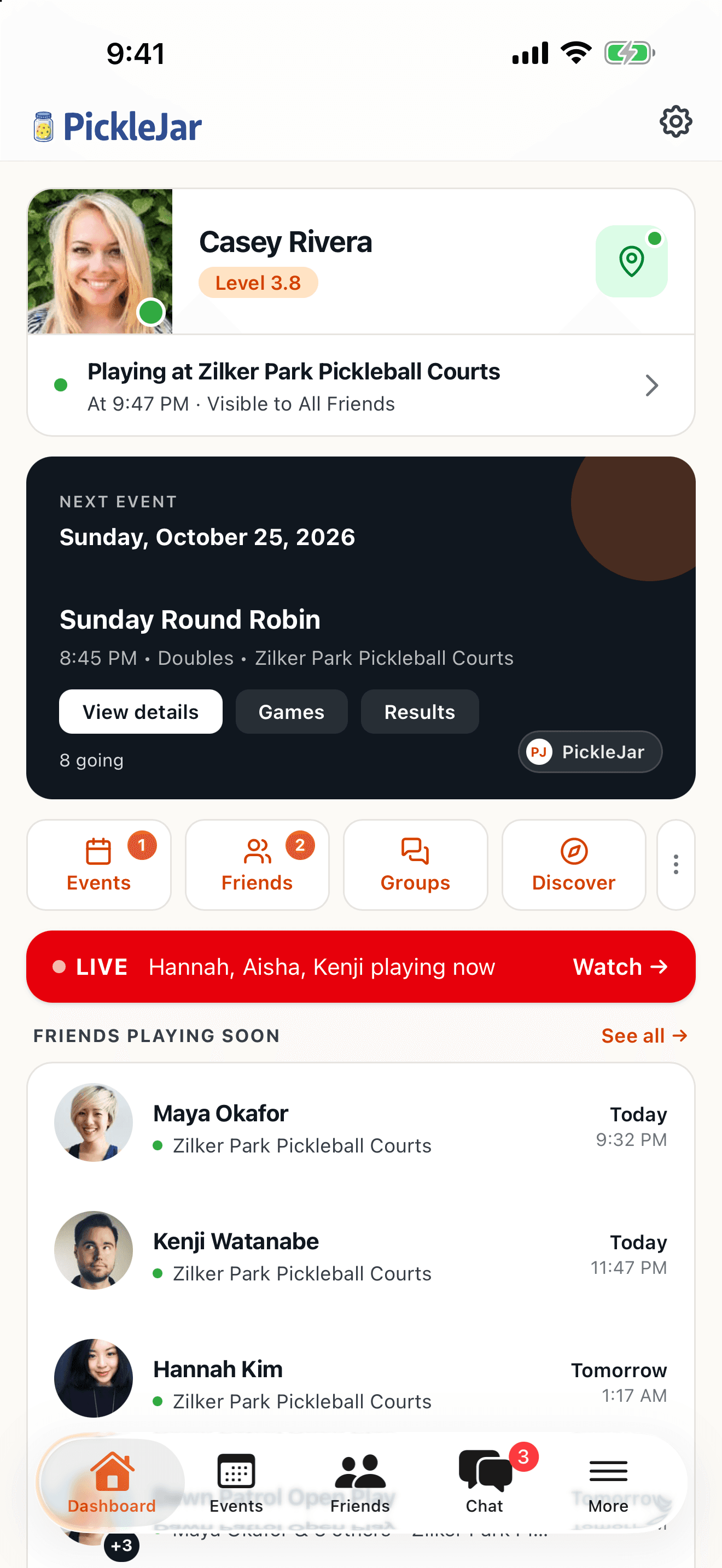
Home ScreenFree
The web version as an app: its own icon, full screen, notifications.
- ✓Events & RSVP
- ✓Friends
- ✓Scores
- ✓Chat
- ✓Courts
- ✓Full DUPR® integration
- ✓CourtReserveTM check-in
- ✓Home screen icon & full screen
- ✓Push notifications on iPhone
- —iPhone app + dark mode
- —Apple Watch scoring
- —Live scoring
- —AI video highlights
- —Check-in widget & Apple Watch check-in
- —Lock Screen & widgets
iPhone app$9.99 once
Everything, plus Apple Watch scoring, widgets and video.
- ✓Events & RSVP
- ✓Friends
- ✓Scores
- ✓Chat
- ✓Courts
- ✓Full DUPR® integration
- ✓CourtReserveTM check-in
- ✓Home screen icon & full screen
- ✓Push notifications on iPhone
- ✓iPhone app + dark mode
- ✓Apple Watch scoring
- ✓Live scoring
- ✓AI video highlights
- ✓Check-in widget & Apple Watch check-in
- ✓Lock Screen & widgets
On Android? Add PickleJar to your home screen from your browser and get everything in the Home Screen column.
Quick answers.
My Safari doesn't have the menu button.Older iPhones have a Share button in the toolbar instead. Tap it, scroll down, tap Add to Home Screen, then Add.
I'm using Chrome or another browser on iPhone.Open thepicklejar.app in Safari first. iPhone only sends notifications from websites added to the Home Screen from Safari.
What about Android?Open the browser menu (three dots) and tap Install app or Add to Home screen. Some browsers offer an Install button right on the page.
Is it free?Yes. The Home Screen version is PickleJar on the web, with its own icon and notifications. The iPhone app adds Apple Watch scoring, widgets and video, $9.99 once.
Still stuck?Email support@thepicklejar.app and we’ll walk you through it.
More answers on the support page.